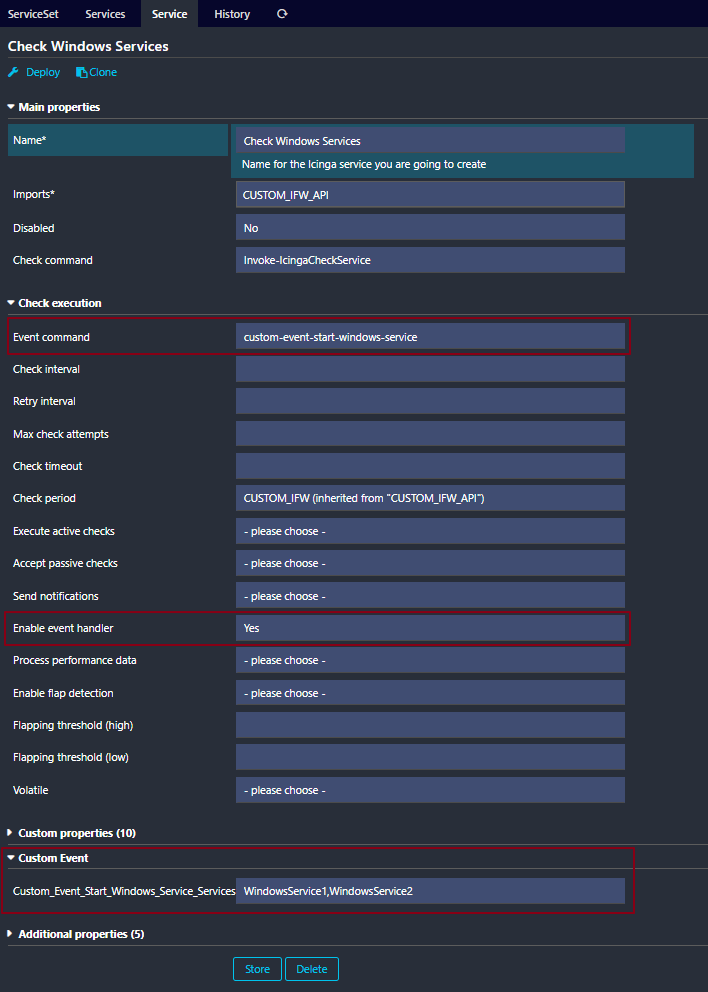
I know this is only partly about Icinga, but I am wondering which prerequisites have to be met in order for Icinga to automatically restart a non-running Windows service.
MYSERVER$ is probably the user Icinga uses to run (NT AUTHORITY\NetworkService).
How would I enable that account to start services belonging to "LocalSystem”. Is there any help I can get from JEA?
On the more Icinga related note; the command Invoke-IcingaCheckService expects an array as argument to the -Service parameter.
What is the proper way to send the actual failing service as an argument to the event_command? (I currently use $IcingaCheckService_Array_Service$ because I couldn’t find any other macro. This always sends all services of this check to the EventCommand powershell above.)
I don’t know if this will help you, but I solved it with JEA as follows. It’s a bit of a messed-up solution
I added a plugin to our custom-developed IfW plugins that can restart Windows services. This way, it can be deployed automatically with Update Icinga and the JEA profile is created correctly right away:
<#
.SYNOPSIS
    Starts a windows service, can be used as an event plugin
.DESCRIPTION
    Starts a windows service, can be used as an event plugin
.PARAMETER Services
    Comma-separated list of services to be started
.PARAMETER ServiceState
    Service state
.PARAMETER ServiceStateType
    Service state type
.PARAMETER ServiceAttempt
    Service attempts
.EXAMPLE
    Event Plugin
#>

function Invoke-IcingaCheckCustomStartService
{
    param(
        [string]$Services = "",
        [string]$ServiceState = "",
        [string]$ServiceStateType = "",
        [int]$ServiceAttempt = 0
    );

    $ServicesArray = ($Services -split ",").Trim()
    $status = ""

    if ($ServiceState -eq "CRITICAL") {
        foreach ($ServiceToRestart in $ServicesArray){
            try{
                $windowsService = Get-Service -Name $ServiceToRestart -ErrorAction SilentlyContinue

                if ($null -eq $windowsService) {
                    $status += "$($ServiceToRestart):not found "
                }
                elseif ($windowsService.Status -eq 'Running') {
                    Restart-Service -Name $ServiceToRestart -Force -ErrorAction Stop
                    $status += "$($ServiceToRestart):restarted "
                }
                else {
                    Start-Service -Name $ServiceToRestart -ErrorAction Stop
                    $status += "$($ServiceToRestart):started "
                }
            }
            catch{
                $status += "$($ServiceToRestart):not started "
            }
        }
    }

    else {
        $status = "not critical"
    }

    $IcingaCheck = New-IcingaCheck -Name 'StartService' -Value $status
    return (New-IcingaCheckResult -Check $IcingaCheck -Compile -NoPerfData $true);
}
I created a custom plugin (Invoke-IcingaCheckStartService) like @lrk did, and setup JEA afterwards (Install-IcingaSecurity).
The only difference is that I would like to use the $IcingaCheckService_Array_Service$ as input to the EventCommand. Hence my command looks diferent (converting the array to a comma separated string):
object EventCommand "event-start-windows-service" {
  command = [
    "C:\\Windows\\System32\\WindowsPowerShell\\v1.0\\powershell.exe",
    "-NoProfile",
    "-ExecutionPolicy", "Bypass",
    "-ConfigurationName", "IcingaForWindows"
  ]

  arguments = {
    "-command" = {
     value = "Invoke-IcingaCheckStartService"
     order = -1
    }
    "-ServiceState" = "$service.state$"
    "-Services" = {
            value = {{
                var arr = macro("$start_service$");

                if (len(arr) == 0) {
                    return "";
                }

                var psarr = arr.map(
                    x => if (typeof(x) == String) {
                        var argLen = len(x);
                        if (argLen != 0 && x.substr(0,1) == "'" && x.substr(argLen - 1, argLen) == "'") {
                            "'" + x + "'";
                         } else {
                            x;
                         }
                    } else {
                        x;
                    }
                 ).join(",");

                return "'" + psarr + "'";
            }}
    }
  }

  vars.start_service = "$IcingaCheckService_Array_Service$"
}
The key aspect is choosing the correct -ConfigurationName which executes the script in the proper JEA context.