Could it be that the latest security update does not work properly when JEA is active:
Cannot make SSL context for cert path: 'C:\ProgramData\icinga2\var\lib\icinga2/certs//hostname.crt' key path: 'C:\ProgramData\icinga2\var\lib\icinga2/certs//hostname.key' ca path: 'C:\ProgramData\icinga2\var\lib\icinga2/certs//ca.crt'.
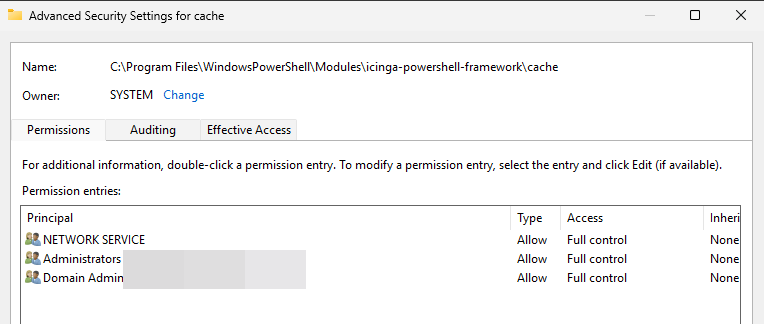
The NETWORK user was authorized for the path by the update.
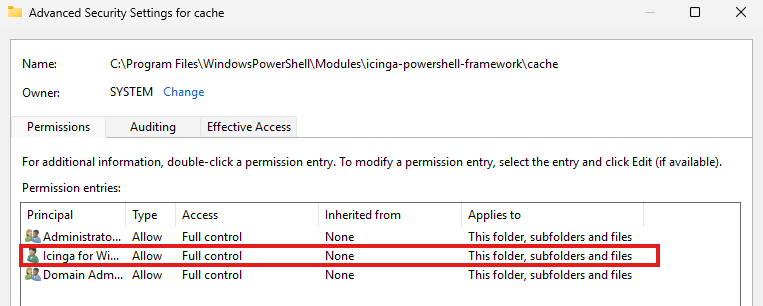
After I manually authorized the JEA user, everything worked again.
Update:
The following must also be authorized manually:
C:\Program Files\WindowsPowerShell\Modules\icinga-powershell-framework\cache
C:\Program Files\WindowsPowerShell\Modules\icinga-powershell-framework\certificate
C:\Program Files\WindowsPowerShell\Modules\icinga-powershell-framework\config
Otherwise, the following will be written in the event log:
The Icinga for Windows PowerShell instance assigned to this service is no longer present. It either crashed or was terminated by the user. Stopping service.
The Icinga PowerShell Service service terminated unexpectedly. It has done this 1 time(s). The following corrective action will be taken in 0 milliseconds: Restart the service.
Thank you for the post. In general this shouldn’t affect the JEA-User, because the security update will consider the currently assigned user of the icinga2 service and apply permissions from that.
If you run
Install-IcingaSecurity;
this should update the user and the permissions accordingly. Im however confused on why the Network Service user is being assigned in your case.
I tested it again.
Icinga Agent Update works, JEA User keeps its permissions.
After that, I updated the Powershell Framework, and now NETWORK Service is set everywhere, even though the log says otherwise.
Install-IcingaSecurty doesn’t change anything either.
[Notice]: Downloading "framework" from "https://packages.icinga.domain.com/IcingaForWindows/framework/icinga-powershell-framework-1.13.4.zip"
[Notice]: Stopping Icinga for Windows service
[Notice]: Stopping service "icingapowershell"
[Notice]: Stopping Icinga Agent service
[Notice]: Stopping service "icinga2"
[Notice]: Installing version "1.13.4" of component "framework"
[Notice]: Unblocking Icinga PowerShell Files
[Notice]: Applying pending migrations required for Icinga for Windows v1.13.4
[Notice]: Disabled inheritance for directory C:\ProgramData\icinga2\etc
[Notice]: Cleared existing ACL entries for directory C:\ProgramData\icinga2\etc
[Notice]: Configured new ACL entries for directory C:\ProgramData\icinga2\etc
[Notice]: Permissions for directory "C:\ProgramData\icinga2\etc" successfully configured for owner "NT AUTHORITY\SYSTEM" and full access users (Hostname\icingajea) and groups (Administrators, domain\Domain Admins)
[Notice]: Disabled inheritance for directory C:\ProgramData\icinga2\var
[Notice]: Cleared existing ACL entries for directory C:\ProgramData\icinga2\var
[Notice]: Configured new ACL entries for directory C:\ProgramData\icinga2\var
[Notice]: Permissions for directory "C:\ProgramData\icinga2\var" successfully configured for owner "NT AUTHORITY\SYSTEM" and full access users (Hostname\icingajea) and groups (Administrators, domain\Domain Admins)
[Notice]: Disabled inheritance for directory C:\Program Files\WindowsPowerShell\Modules\icinga-powershell-framework\cache
[Notice]: Cleared existing ACL entries for directory C:\Program Files\WindowsPowerShell\Modules\icinga-powershell-framework\cache
[Notice]: Configured new ACL entries for directory C:\Program Files\WindowsPowerShell\Modules\icinga-powershell-framework\cache
[Notice]: Permissions for directory "C:\Program Files\WindowsPowerShell\Modules\icinga-powershell-framework\cache" successfully configured for owner "NT AUTHORITY\SYSTEM" and full access users (Hostname\icingajea) and groups (Administrators, domain\Domain Admins)
[Notice]: Disabled inheritance for directory C:\Program Files\WindowsPowerShell\Modules\icinga-powershell-framework\config
[Notice]: Cleared existing ACL entries for directory C:\Program Files\WindowsPowerShell\Modules\icinga-powershell-framework\config
[Notice]: Configured new ACL entries for directory C:\Program Files\WindowsPowerShell\Modules\icinga-powershell-framework\config
[Notice]: Permissions for directory "C:\Program Files\WindowsPowerShell\Modules\icinga-powershell-framework\config" successfully configured for owner "NT AUTHORITY\SYSTEM" and full access users (Hostname\icingajea) and groups (Administrators, domain\Domain Admins)                                                                                                                                                                      [Notice]: Disabled inheritance for directory C:\Program Files\WindowsPowerShell\Modules\icinga-powershell-framework\certificate                                                                                                                 [Notice]: Cleared existing ACL entries for directory C:\Program Files\WindowsPowerShell\Modules\icinga-powershell-framework\certificate                                                                                                         [Notice]: Configured new ACL entries for directory C:\Program Files\WindowsPowerShell\Modules\icinga-powershell-framework\certificate
[Notice]: Permissions for directory "C:\Program Files\WindowsPowerShell\Modules\icinga-powershell-framework\certificate" successfully configured for owner "NT AUTHORITY\SYSTEM" and full access users (Hostname\icingajea) and groups (Administrators, domain\Domain Admins)
[Notice]: Starting Icinga for Windows service
[Notice]: Starting service "icingapowershell"
[Notice]: Starting Icinga Agent service
[Notice]: Starting service "icinga2"
[Notice]: No update package found for component "plugins"
[Notice]: No update package found for component "mssql"
[Notice]: No update package found for component "iis"
[Notice]: The installed version "2.15.2" of component "agent" is identical or lower than the new version "2.15.2". Use "-Force" to install anyway
[Notice]: No update package found for component "service"
[Notice]: Writing Icinga for Windows environment information as JEA profile
[Warning]: The module "icinga-powershell-plugins" is using "Add-Type" or "Add-IcingaAddTypeLib" definitions for file "C:\Program Files\WindowsPowerShell\Modules\icinga-powershell-plugins\provider\disks\Get-IcingaDiskAttributes.psm1". Ensure you validate the code before trusting this publisher.
[Warning]: The module "icinga-powershell-plugins" is using "Add-Type" or "Add-IcingaAddTypeLib" definitions for file "C:\Program Files\WindowsPowerShell\Modules\icinga-powershell-plugins\provider\disks\Get-IcingaUNCPathSize.psm1". Ensure you validate the code before trusting this publisher.
[Notice]: Registering Icinga for Windows JEA profile
[Notice]: JEA Profile "IcingaForWindows" was successfully installed
[Notice]: Stopping service "icingapowershell"
[Notice]: Starting service "icingapowershell"
Install-IcingaSecurity (default user):
PS C:\Windows\system32> Install-IcingaSecurity;
[Notice]: Installing user "icinga"
[Notice]: User was successfully created.
[Notice]: Service User ".\icinga" for service "icinga2" successfully updated
[Notice]: Service User ".\icinga" for service "icingapowershell" successfully updated
[Notice]: Disabled inheritance for directory C:\ProgramData\icinga2\etc
[Notice]: Cleared existing ACL entries for directory C:\ProgramData\icinga2\etc
[Notice]: Configured new ACL entries for directory C:\ProgramData\icinga2\etc
[Notice]: Permissions for directory "C:\ProgramData\icinga2\etc" successfully configured for owner "NT AUTHORITY\SYSTEM" and full access users (icinga) and groups (Administrators, domain\Domain Admins)
[Notice]: Disabled inheritance for directory C:\ProgramData\icinga2\var
[Notice]: Cleared existing ACL entries for directory C:\ProgramData\icinga2\var
[Notice]: Configured new ACL entries for directory C:\ProgramData\icinga2\var
[Notice]: Permissions for directory "C:\ProgramData\icinga2\var" successfully configured for owner "NT AUTHORITY\SYSTEM" and full access users (icinga) and groups (Administrators, domain\Domain Admins)
[Notice]: Disabled inheritance for directory C:\Program Files\WindowsPowerShell\Modules\icinga-powershell-framework\cache
[Notice]: Cleared existing ACL entries for directory C:\Program Files\WindowsPowerShell\Modules\icinga-powershell-framework\cache
[Notice]: Configured new ACL entries for directory C:\Program Files\WindowsPowerShell\Modules\icinga-powershell-framework\cache
[Notice]: Permissions for directory "C:\Program Files\WindowsPowerShell\Modules\icinga-powershell-framework\cache" successfully configured for owner "NT AUTHORITY\SYSTEM" and full access users (icinga) and groups (Administrators, domain\Domain Admins)
[Notice]: Disabled inheritance for directory C:\Program Files\WindowsPowerShell\Modules\icinga-powershell-framework\config
[Notice]: Cleared existing ACL entries for directory C:\Program Files\WindowsPowerShell\Modules\icinga-powershell-framework\config
[Notice]: Configured new ACL entries for directory C:\Program Files\WindowsPowerShell\Modules\icinga-powershell-framework\config
[Notice]: Permissions for directory "C:\Program Files\WindowsPowerShell\Modules\icinga-powershell-framework\config" successfully configured for owner "NT AUTHORITY\SYSTEM" and full access users (icinga) and groups (Administrators, domain\Domain Admins)
[Notice]: Disabled inheritance for directory C:\Program Files\WindowsPowerShell\Modules\icinga-powershell-framework\certificate
[Notice]: Cleared existing ACL entries for directory C:\Program Files\WindowsPowerShell\Modules\icinga-powershell-framework\certificate
[Notice]: Configured new ACL entries for directory C:\Program Files\WindowsPowerShell\Modules\icinga-powershell-framework\certificate
[Notice]: Permissions for directory "C:\Program Files\WindowsPowerShell\Modules\icinga-powershell-framework\certificate" successfully configured for owner "NT AUTHORITY\SYSTEM" and full access users (icinga) and groups (Administrators, domain\Domain Admins)
[Notice]: Restarting service "icinga2"
[Notice]: Stopping service "icingapowershell"
[Notice]: Starting service "icingapowershell"
[Notice]: User "icinga" including permissions was successfully installed on this host
[Notice]: Writing Icinga for Windows environment information as JEA profile
[Warning]: The module "icinga-powershell-plugins" is using "Add-Type" or "Add-IcingaAddTypeLib" definitions for file "C:\Program Files\WindowsPowerShell\Modules\icinga-powershell-plugins\provider\disks\Get-IcingaDiskAttributes.psm1". Ensure you validate the code before trusting this publisher.
[Warning]: The module "icinga-powershell-plugins" is using "Add-Type" or "Add-IcingaAddTypeLib" definitions for file "C:\Program Files\WindowsPowerShell\Modules\icinga-powershell-plugins\provider\disks\Get-IcingaUNCPathSize.psm1". Ensure you validate the code before trusting this publisher.
[Notice]: Registering Icinga for Windows JEA profile
[Notice]: JEA Profile "IcingaForWindows" was successfully installed
[Notice]: Stopping service "icingapowershell"
[Notice]: Starting service "icingapowershell"
type or paste code here